
Session Assistant
Your intelligent studio assistant, built right into Pro Tools
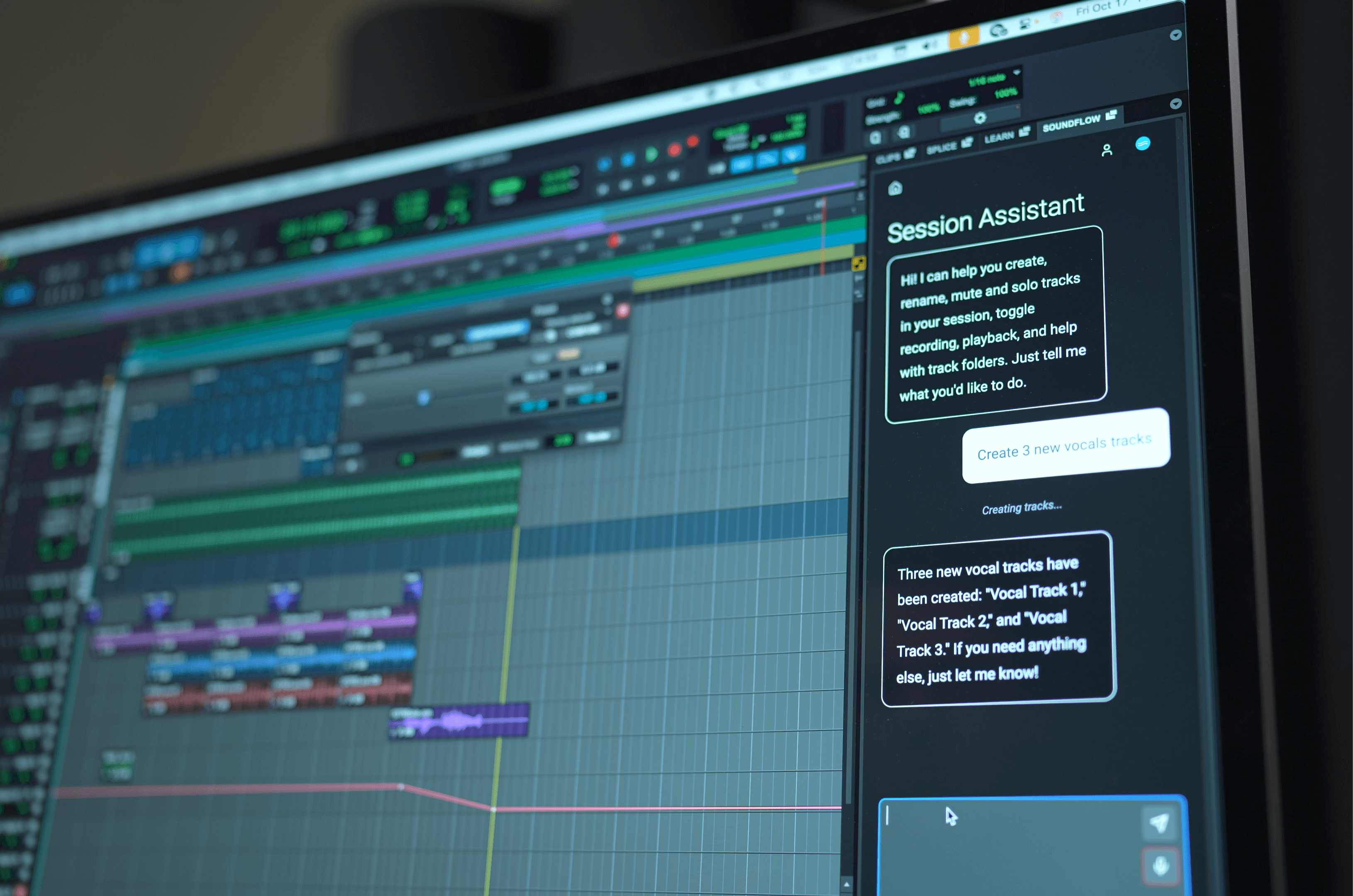
Session Assistant in Pro Tools
Session Assistant
Your intelligent studio assistant, built right into Pro Tools
Powered by SoundFlow’s SFX framework and available directly from the SoundFlow panel inside Pro Tools 2025.10 and later, Session Assistant provides a real-time conversational interface inside Pro Tools that translates natural language commands into automated actions. Designed with a familiar chat-style interface, it allows users to perform tasks such as creating, renaming, and modifying tracks, managing routing, or adjusting parameters simply by typing or speaking a request. Session Assistant understands your context, adapts to your workflow, and executes your requests.
In SoundFlow 6.1, Session Assistant has been completely rebuilt based on user feedback. It is now powered by a more intelligent model for complex requests, responds significantly faster, has hundreds more actions, and can access far more session context for accurate, context-aware operations.
What’s new in SoundFlow 6.1
Check out Raphael Sepulveda’s video to see the new SoundFlow 6.1 Session Assistant features in action.
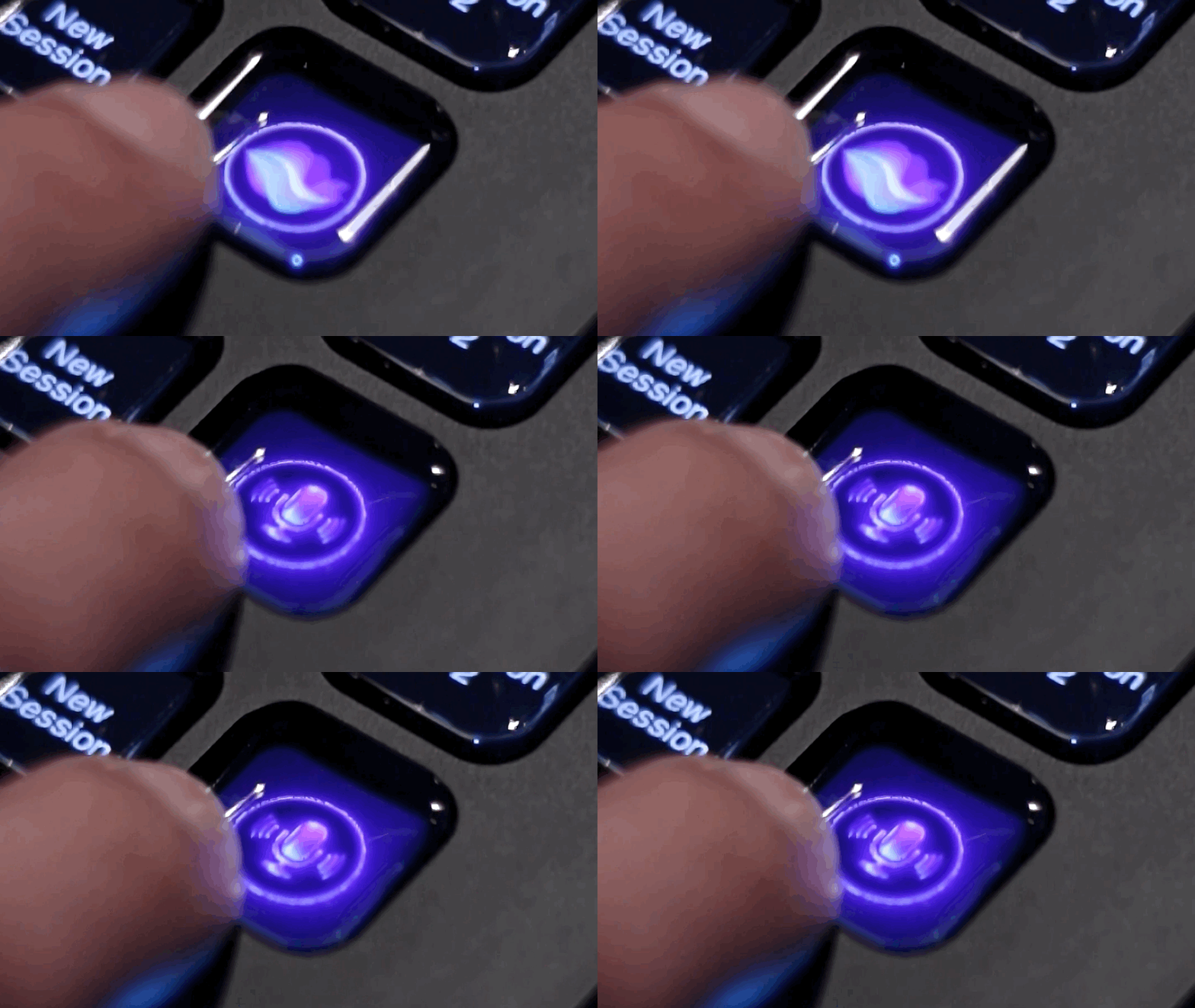
- Voice Control: Hold down a button and tell Session Assistant what you want it to do.
- Mic Input Selection: Choose which microphone Session Assistant uses for voice commands.
- Smarter understanding: Powered by a more intelligent model that better understands complex requests.
- Faster responses: Significantly faster response times compared to the previous version.
- Hundreds of new actions: A much larger set of actions for controling Pro Tools.
- Any Pro Tools menu item, by natural language: Access Pro Tools menu items using natural language and full menu paths (example: File > Export > Session Info).
- More session awareness: Access to deeper track and session information for more accurate, context-aware operations.
Key Features
Conversational Commands
Control Pro Tools by typing or speaking naturally.
Context-Aware Automation
Uses your current session and track state to perform accurate actions.
Memory and Adaptability
Remembers what you’ve asked during your current chat, enabling multi-step conversations and adaptive responses.
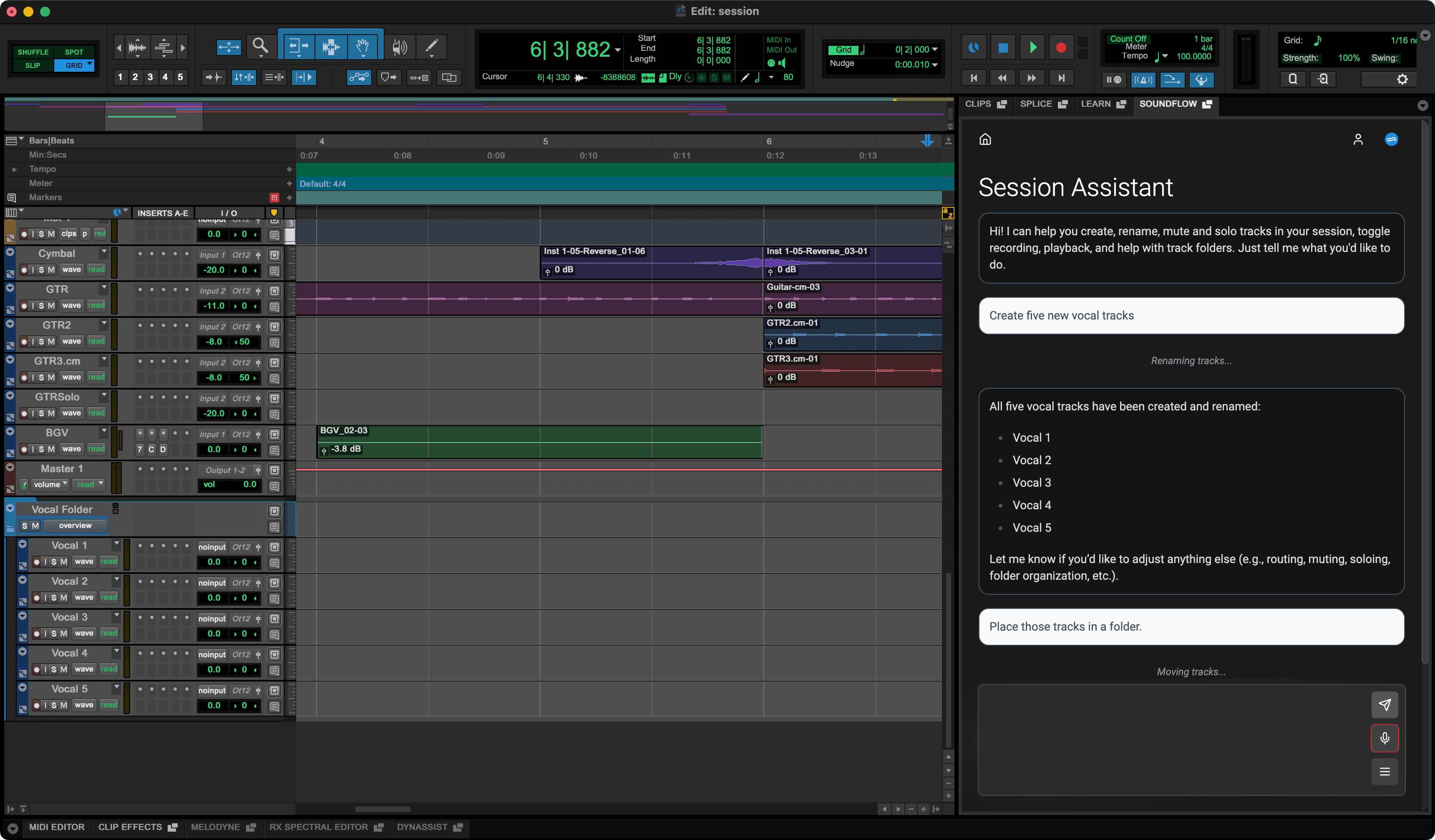
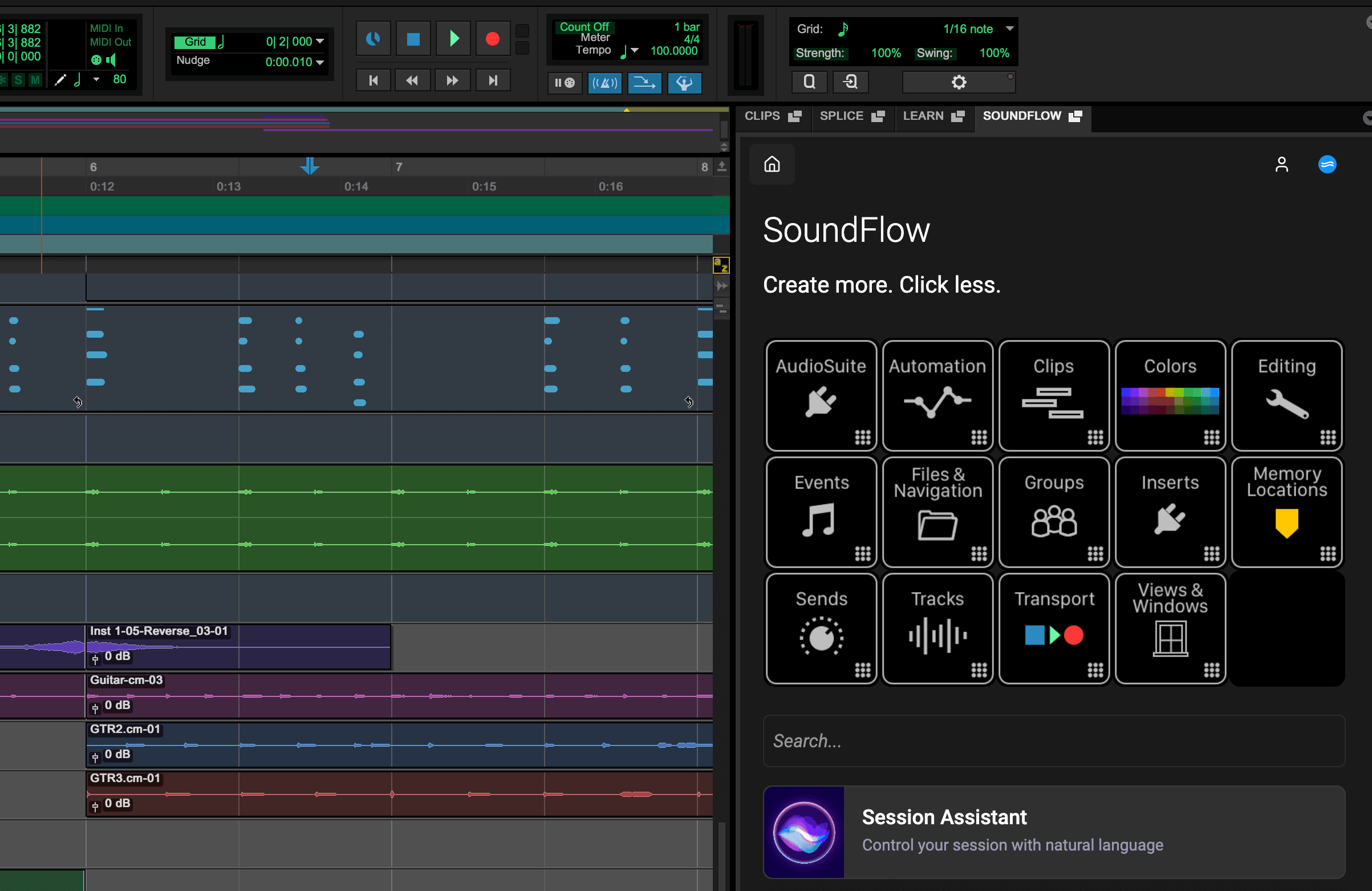
Runs inside Pro Tools
Runs directly inside Pro Tools so you can stay focused on your session without switching apps.
What you can do with Session Assistant
Track Creation
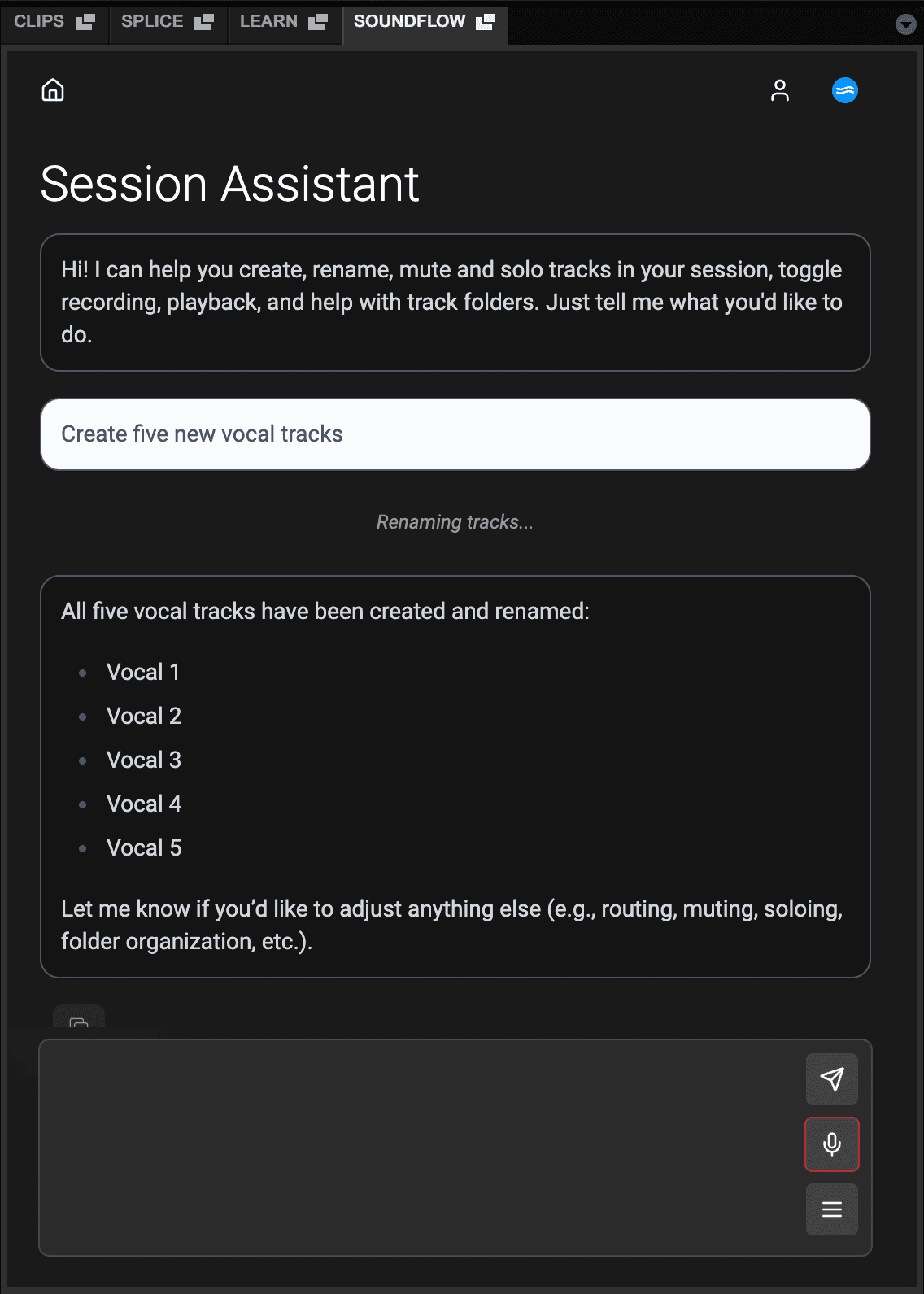
Create new tracks with a specified track type, width, and format.
Track Renaming
Rename one or multiple tracks by name.
Track Selection
Select tracks by name and work with multiple tracks at once.
Track Visibility
Show or hide tracks in the session.
Track Activation
Make tracks active or inactive.
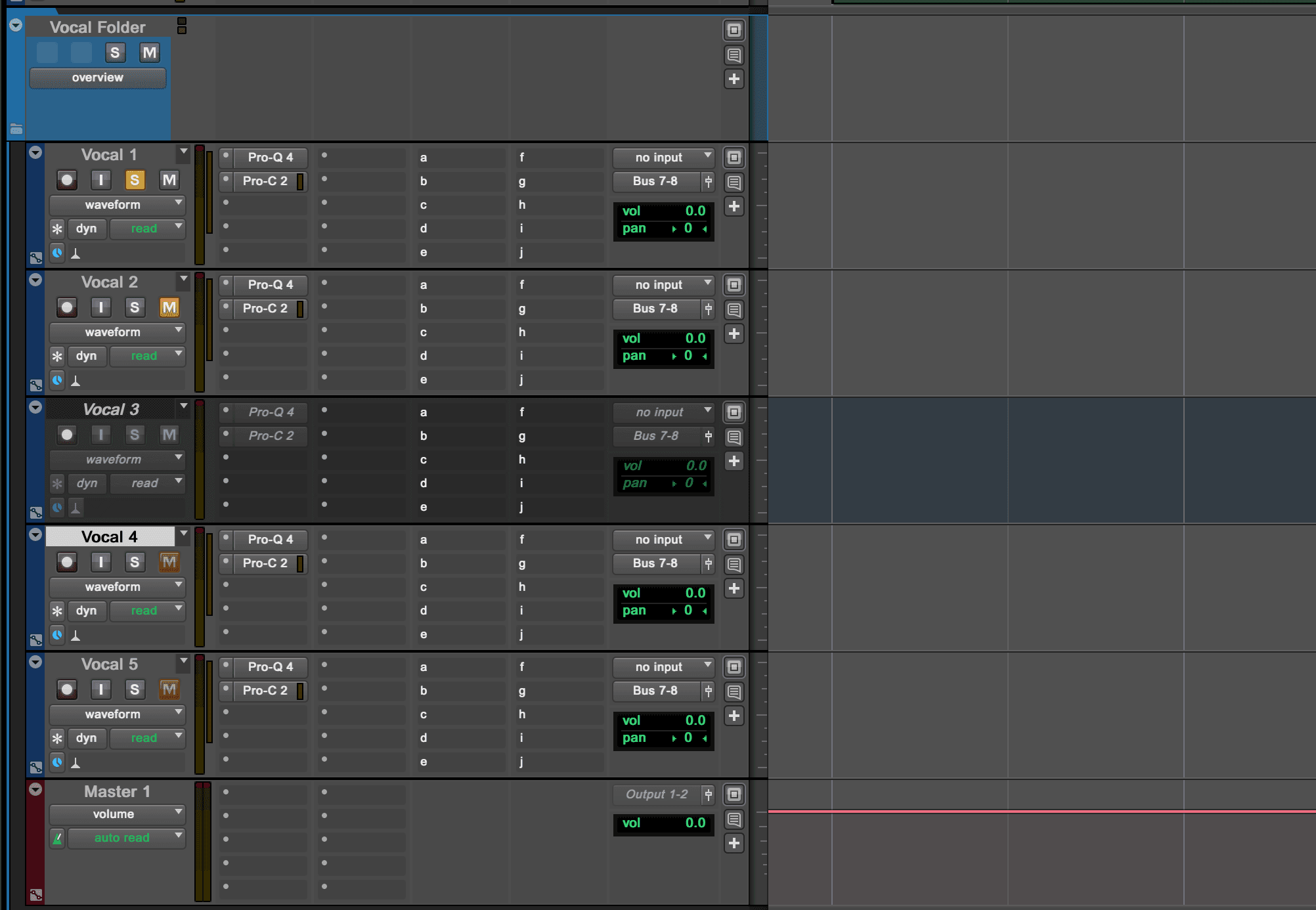
Solo and Mute Control
Solo or un-solo tracks and mute or unmute tracks.
Record Enable Control
Enable, disable, or toggle record-enable on tracks.
Track Listing
List all tracks in the session.
Track Deletion
Delete one or more tracks from the session.
Folder Tracks
Move tracks into folders and open or close folder tracks.
Track Splitting
Split stereo or multichannel tracks into separate mono tracks.
Input/Output Assignment
Set routing for a track’s input and output.
Markers and Memory Locations
List, add, edit, delete, and jump to markers or memory locations by number.
Transport Control
Start or stop playback by toggling the play state.
Global Record State
Arm or disarm the global record state.
Pro Tools Menu Access
Retrieve Pro Tools application menu items and invoke any menu command using its full menu path.
How It Works
- Open the SoundFlow panel on the right side of the Edit window in your Pro Tools session.
- Click Session Assistant in the SoundFlow panel.
- If you plan to use voice commands, set your Mic Input Selection so Session Assistant listens to the microphone you want to use.
- Choose how you want to send a request:
- Type a prompt and click Send
- Record a prompt using the microphone button, then click Send
- Use Voice Control: press and hold your assigned keyboard shortcut (or a Stream Deck button), speak your command, then release to send
- Watch Session Assistant go to work.
Responsible AI
Session Assistant is part of SoundFlow's commitment to Responsible AI, tools that empower creators, not replace them.
“Nothing replaces the nuance and emotion of creativity - Session Assistant ensures the robots work for us, not the other way around.”
- Christian Scheuer, SoundFlow Founder
Requirements
Session Assistant is built directly into the SoundFlow panel inside Pro Tools 2025.10 and later.
Session Assistant is available with a SoundFlow AI or SoundFlow Pro AI subscription.
To access the latest Session Assistant features, you’ll need SoundFlow 6.1 or later.