Getting Started with the Session Assistant
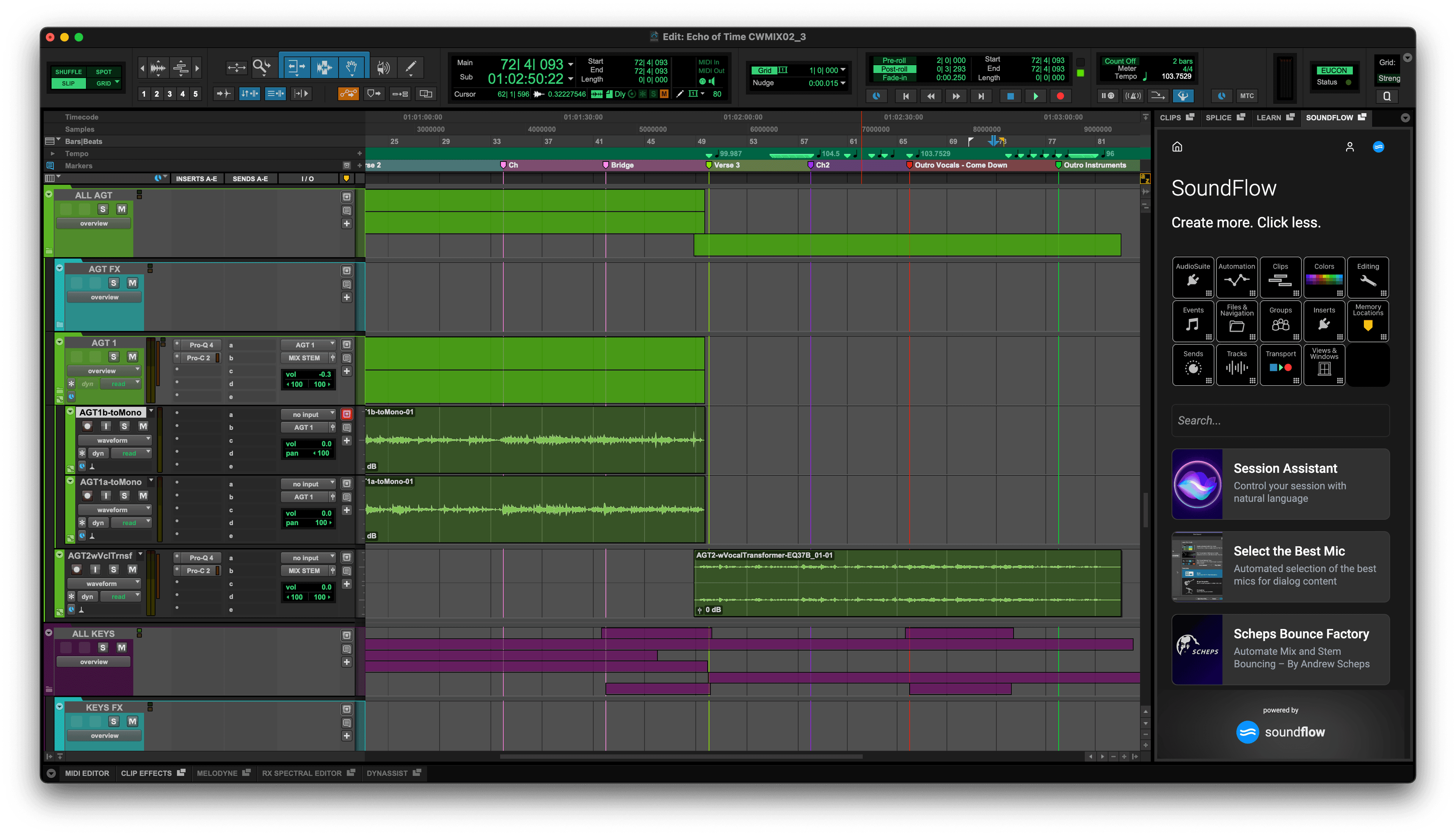
Starting with Pro Tools 2025.10, SoundFlow now provides an interactive AI agent directly in Pro Tools called the Session Assistant. This article describes how to get access to it.
System requirements
You'll need these versions of Pro Tools and SoundFlow installed as a minimum:
- Pro Tools 2025.10+
- SoundFlow 6.1.2+
Watch the Getting Started video
Getting started with the Session Assistant
Install Pro Tools 2025.10+ and SoundFlow 6.1.2+
Start by making sure you have installed the latest version of Pro Tools, minimum version 2025.10.
Next, make sure you've installed at least SoundFlow 6.1.2 - installers are available here:
Note, you don't have to uninstall the version of SoundFlow that came with Pro Tools. It's enough to simply run the newest SoundFlow installer, and it'll update things properly.
Navigate to the SoundFlow panel
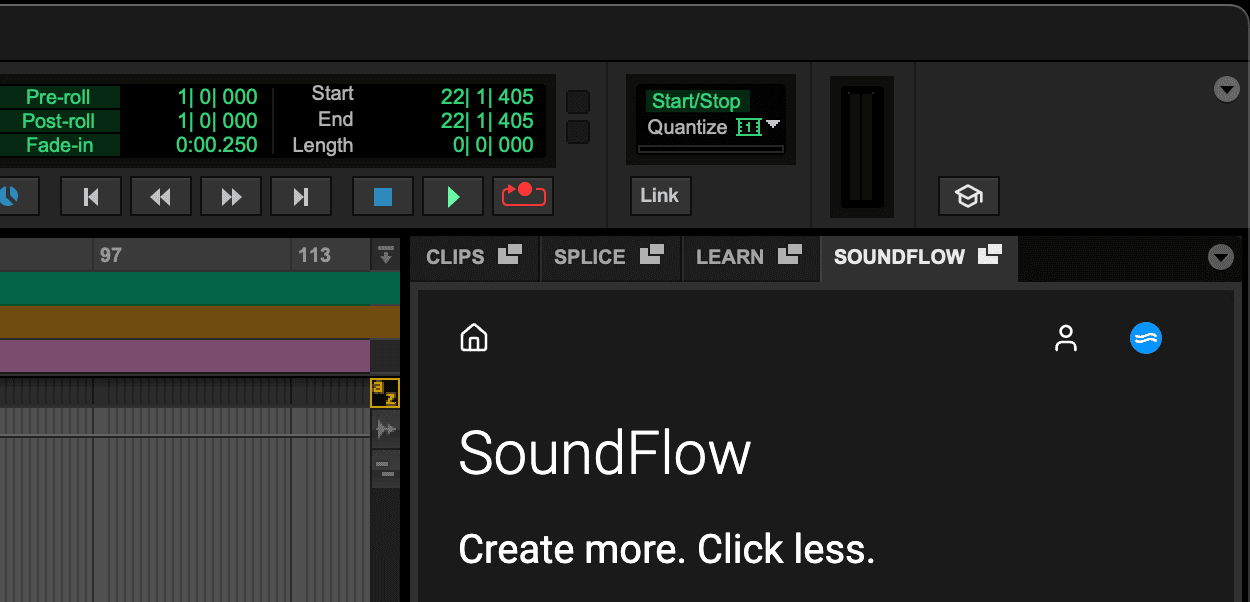
In the right side panel of Pro Tools, next to the Clip List, choose the SoundFlow panel.
Sign in to your account
If you've not yet signed in, you can now sign in with a SoundFlow account or an Avid account.
We recommend signing in with a SoundFlow account or creating a free one as it makes it easier to be in control of your password.
Start by choosing Sign in with SoundFlow and then follow the steps in the browser to either log into an existing account or to create a new one.
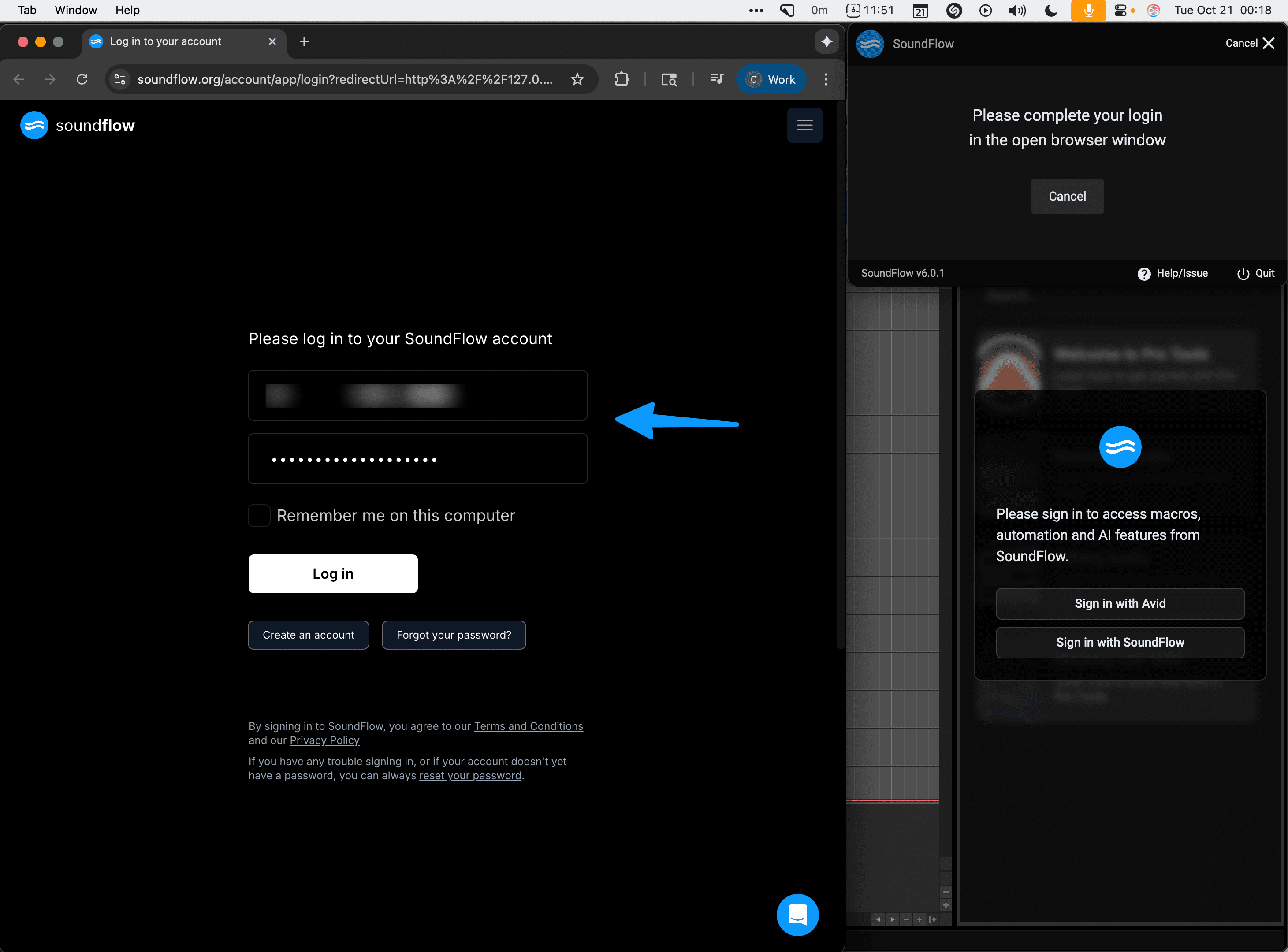
Note that logging in via a SoundFlow account or an Avid account gives access to exactly the same features. There's no additional features available for free by logging in via Avid - that option simply exists to skip the step of creating a SoundFlow account.
Since you're more in control over your password by logging in with a SoundFlow account, we typically recommend this option.
Open the Session Assistant
Once you're logged in, your SoundFlow panel should now be ready.
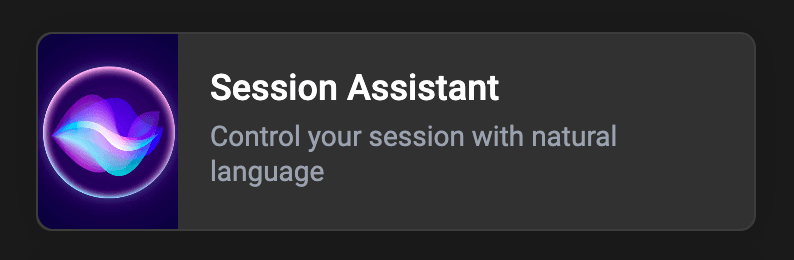
In the SoundFlow panel, click the Session Assistant to open it.
Using the Session Assistant
Typing your first request
In the text field at the bottom, type your first request for the Session Assistant, then hit Enter or the send button.
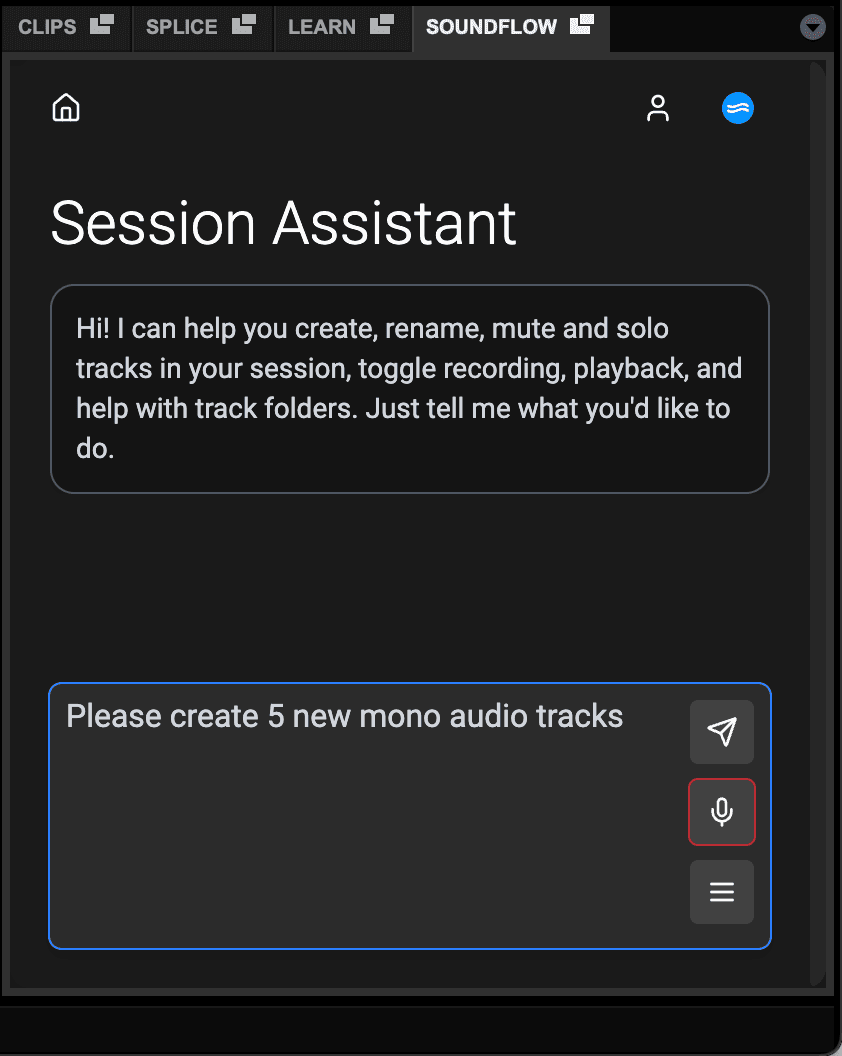
You can use Shift+Enter to create newlines without submitting your message.
Claiming free credits
If this is the first time you're using the Session Assistant, you'll be able to claim free credits:
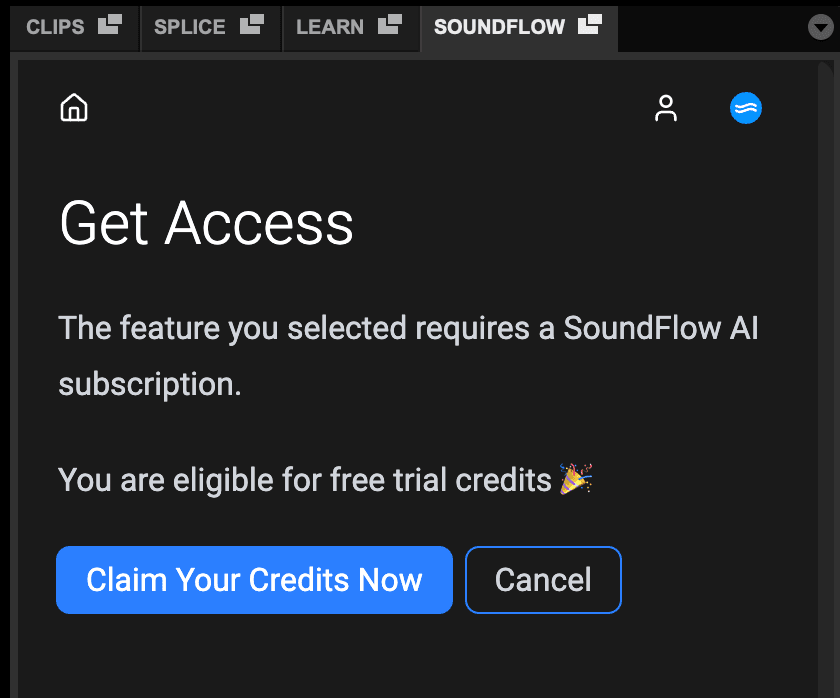
Click Claim Your Credits Now to claim them.
Note: After this step, you may have to send your request again.
If you've already had an existing trial or we've run out of available trial credits, you may not see the option to claim free credits.
In that case, you'll be directed to start the relevant SoundFlow AI or SoundFlow Pro AI subscription to regain access.
You can always contact us at support@soundflow.org for any questions.
Using the mic input
If you'd like to use your voice to control the Session Assistant, you can use the Mic input button:

To use it, click it once, start speaking, then click the green checkmark. Once you've confirmed the transcription was accurate, send the message like normal.
Setting up your microphone input
To control which audio interface and channel is used for the microphone input, click the hamburger icon:

And then click the Select Audio Input Device menu item.
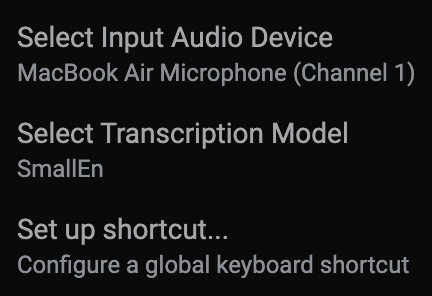
This will show a popup menu with a list of all available audio interfaces. To test, use the Mic input button as described above.
Setting up a global shortcut
Finally, we can set up a global keyboard shortcut that you can use to launch the Session Assistant from anywhere (as long as Pro Tools is running).
This will allow you to hold down a key combination, speak while holding it down, and then, when you release the keys, what you said will be transcribed and loaded into the Session Assistant and it'll automatically execute the request.
To set this up, click the hamburger menu:
And then click the Set up shortcut... menu item.
Finally, follow the instructions on screen.
Providing feedback
The Session Assistant is undergoing constant development. If you find something it can't do, please let us know.
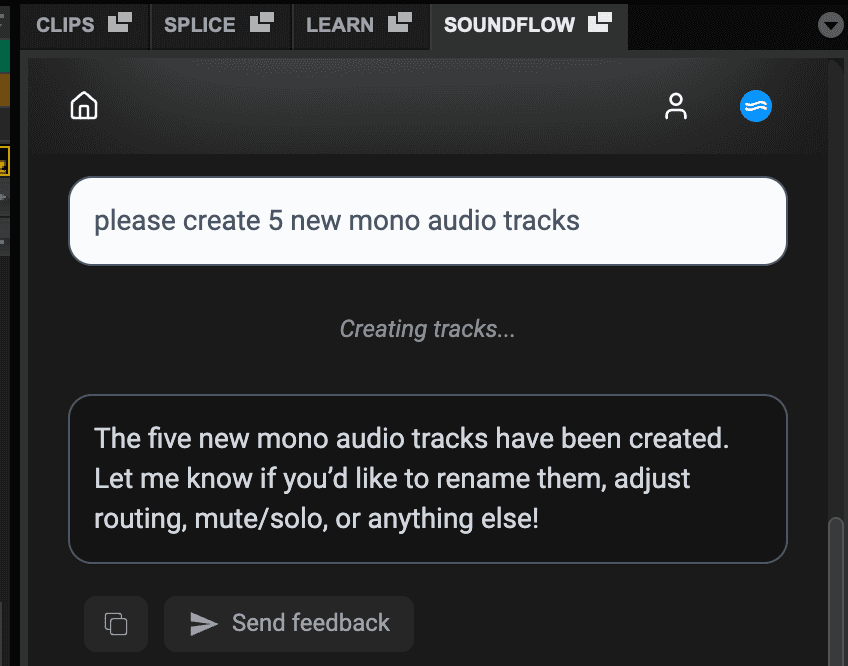
There's a Send feedback button available underneath every conversation - we encourage you to use this to let us know about your experience.
Getting Help
If you need more help, check out our "Getting Help" article.
Thanks for reading - we hope you enjoy using SoundFlow with Pro Tools!