
CS DAW Commands
Search for then Copy or Insert DAW commands directly into the SF Editor! (Be sure to read the documentation and watch video linked there)
Be sure to check out the demo video below
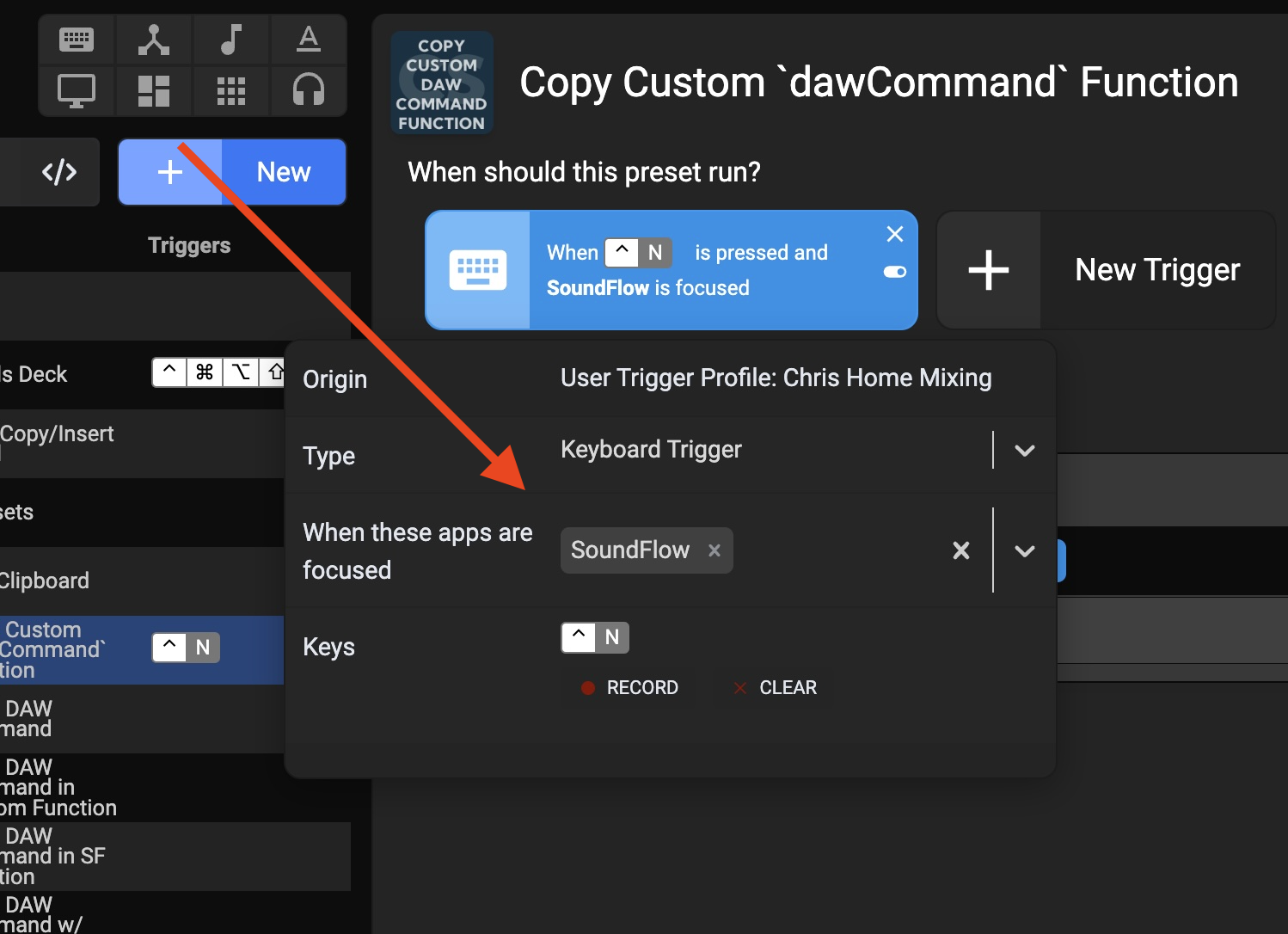
These scripts / commands must be run from either a Stream Deck button or a keyboard trigger:
This package of commands will search for Pro Tools DAW commands from a searchable list.
Daw Commands are "scraped" from Pro Tools only once and are stored on your drive.
Once found the command ID can be copied to the clipboard or inserted directly into the SoundFlow editor.
The commands can be copied and inserted in a number of ways:
plain command: ClearSendNewPlayList
command in quotes: "ClearSendNewPlayList"
command in the standard SoundFlow DAW command call: sf.ui.proTools.sfx.dawCommands.getByUniquePersistedName("ClearSendNewPlayList").run()
command in custom, shortened function call for better readability: dawCommand("ClearSendNewPlayList").run()
To use the shortened command call you'll need to copy or insert the command function using one of the dawCommand presets and place it at the top of your script:
const dawCommand = (commandName) => sf.ui.proTools.sfx.dawCommands.getByUniquePersistedName(commandName);
If a new version of Pro Tools is detected it will scrape the commands again while still keeping the previous commands. This way you are always working with the DAW commands associated with the Pro Tools version you are running
It is best to run these scripts from either a stream deck button or a keyboard trigger
Requirements:
SoundFlow 6 and Pro Tools 2025.12 +
Important!:
To insert a command directly into the SoundFlow editor the text cursor must be active in the editor pane before running an insertion script.
If not you will get a dialog that reads "The copied content cannot be pasted here".
If this happens simply place the cursor in the desired position in the editor and paste as usual (cmd-v)
******
Important**! (2)**:
Inserting commands into the SoundFlow editor will not function properly if they are run from an on-screen deck.
How do I get CS DAW Commands?
CS DAW Commands is a package built on the SoundFlow platform. To get it, please follow these steps:
Sign up as a new SoundFlow user if you don't already have an account.
Install the SoundFlow app on your Mac.
Open up the SoundFlow app, click the "Store" tab
Locate the 'CS DAW Commands' package by searching in the search field.
Click the Install button.